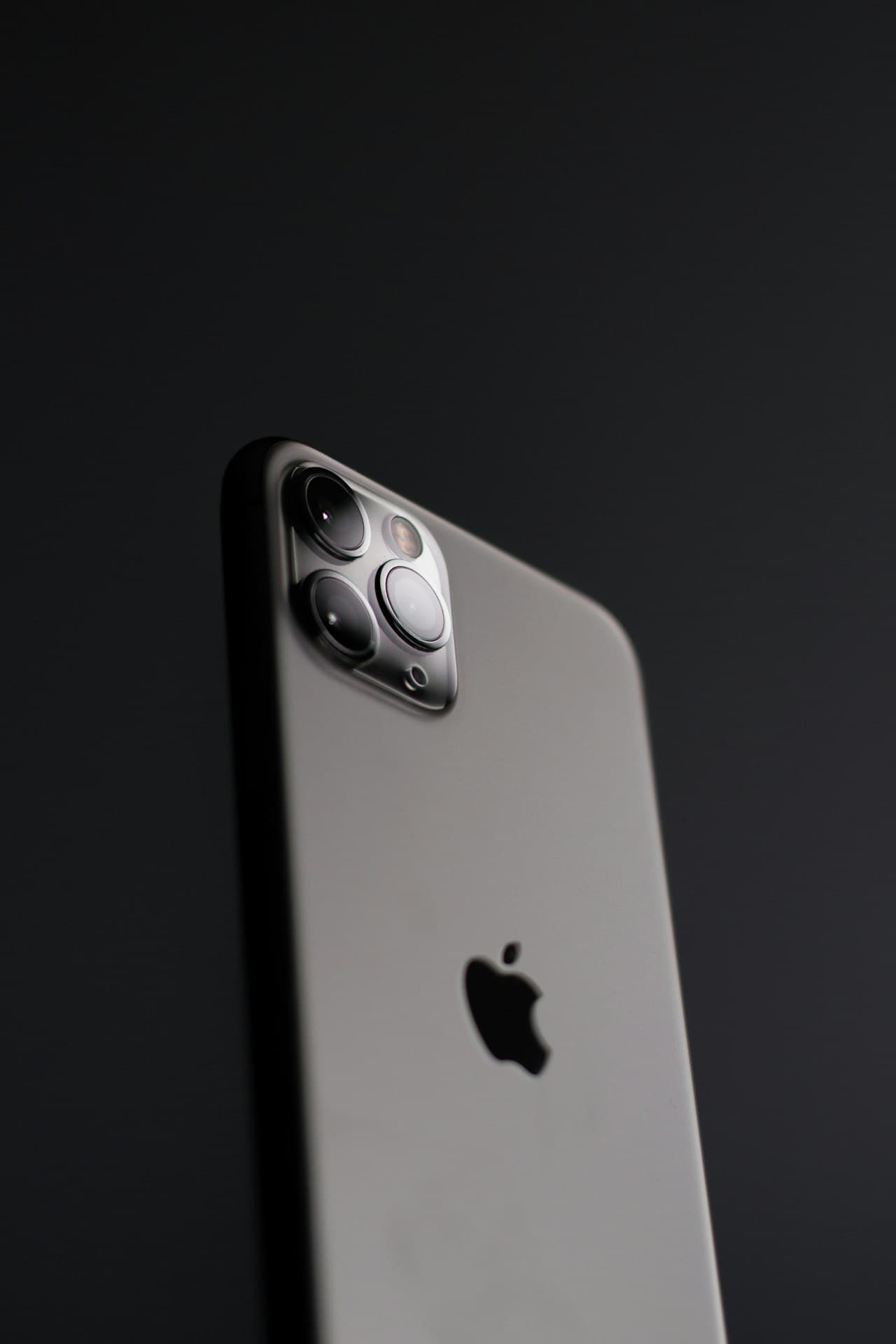


Face ID Not Working After Screen Replacement? Here's Why
Getting your iPhone screen replaced should be straightforward - but what happens when Face ID stops working afterwards? This is a common complaint, and understanding why it happens can help you make better repair decisions.
How Face ID Works
The TrueDepth Camera System
Face ID isn't just a front camera. It's a sophisticated system including:
Components:
- Dot projector (projects 30,000 invisible dots)
- Infrared camera (reads the dot pattern)
- Flood illuminator (infrared light)
- Front camera (separate from Face ID)
- Ambient light sensor
- Proximity sensor
The Pairing Problem
Apple pairs each TrueDepth module to the specific logic board. This means:
- Replacing the Face ID module = Face ID disabled
- Transferring components incorrectly = Face ID disabled
- Damaging flex cables = Face ID disabled
Why Face ID Fails After Screen Replacement
Reason 1: Component Transfer Issues
The Problem: The Face ID components must be carefully transferred from your old screen to the new one. This requires:
- Specialized tools
- Clean environment
- Proper technique
- Component knowledge
- Flex cables damaged during removal
- Components not properly seated
- Connections contaminated with debris
- Incorrect reassembly order
Reason 2: Third-Party Screen Quality
The Problem: Cheap aftermarket screens often have:
- Wrong component spacing
- Poor flex cable quality
- Incompatible connectors
- No Face ID component housing
- Components don't fit properly
- Pressure damages sensors
- Connections fail over time
Reason 3: Improper Handling
The Problem: Face ID components are extremely delicate:
- Dot projector can be misaligned
- Infrared camera is pressure-sensitive
- Flex cables are paper-thin
- Technician touches optical components
- Too much pressure applied
- Static discharge damages sensors
- Debris enters optical elements
Reason 4: Software Issues
The Problem: Sometimes it's not hardware:
- iOS update during repair
- Reset performed incorrectly
- Component serialization issues
- Face ID disabled by software
- "Face ID is not available" message
- Requires proper recalibration
Signs of Face ID Damage
Immediate Signs
After repair, check for:
- "Face ID is not available" message
- Camera viewfinder shows black screen
- Front camera works but Face ID doesn't
- Portrait mode no longer works
Delayed Signs
Sometimes failure takes time:
- Face ID works initially, fails later
- Intermittent recognition issues
- Slower than before
- "Move iPhone Lower/Higher" frequent messages
How Professional Repair Prevents This
At RevivaTech
Our Process:
- Use quality screens with proper housing
- Transfer Face ID components carefully
- Work in clean, controlled environment
- Test Face ID thoroughly after repair
- Use proper tools and techniques
- All Face ID functions
- Front camera operation
- Portrait mode
- Memoji functionality
- FaceTime video quality
What to Ask Any Repair Shop
Before booking:
- "Do you transfer Face ID components?"
- "What's your Face ID success rate?"
- "Is Face ID tested after repair?"
- "What if Face ID doesn't work?"
- "Do you use genuine-quality parts?"
Can Broken Face ID Be Fixed?
Yes, Often
Fixable Issues:
- Misaligned components - realignment possible
- Poor connection - reseating components
- Software issues - recalibration
- Debris contamination - cleaning
Sometimes Not
Unfixable Issues:
- Dot projector damage - paired to board
- Infrared camera failure - paired to board
- Logic board damage - major repair needed
Our Repair Options
Free Re-Repair: If Face ID fails after our screen repair, we:
- Reassess the repair
- Re-transfer components if needed
- Test thoroughly
- No additional charge
- Full diagnostic
- Component inspection
- Repair if possible
- Honest assessment if not
Preventing Face ID Issues
Before Any Repair
Choose Wisely:
- Research repair shop reviews
- Ask about Face ID specifically
- Check warranty terms
- Avoid ultra-cheap repairs
- Experience with Face ID transfers?
- What parts do you use?
- Warranty if Face ID fails?
- Can you show testing process?
DIY Warnings
Don't DIY Unless Expert:
- Face ID requires precise handling
- Tools must be specialized
- Mistakes are often permanent
- Risk far exceeds savings
What To Do If Face ID Stopped Working
Step 1: Soft Reset
- Hold Side + Volume Down
- Slide to power off
- Wait 30 seconds
- Power on and test
Step 2: Check Settings
- Settings > Face ID & Passcode
- Try "Reset Face ID"
- Re-enroll your face
- Test recognition
Step 3: Contact Original Repair Shop
If repair was recent:
- Explain the issue
- Request re-examination
- Ask about warranty coverage
- Document everything
Step 4: Professional Assessment
If shop can't help:
- Bring to experienced repair centre
- Request diagnostic
- Get honest opinion
- Decide on repair vs replacement
Our Face ID Repair Services
Face ID Diagnostic: Free
- Full component testing
- Honest assessment
- Repair quote if possible
- Component realignment
- Flex cable repair
- Sensor cleaning
- Full function testing
- Quality display
- Careful component transfer
- Full testing included
- 12-month warranty
Book Your Assessment
Face ID not working? We can help.
📞 Call for advice 💻 Book a Face ID diagnostic
Based in Bournemouth, serving Poole, Christchurch, Dorset and UK-wide via mail-in.
RevivaTech has successfully restored Face ID on hundreds of iPhones. Not all cases are fixable, but we'll give you an honest assessment every time.
Share this article

Written by
James Mitchell
Lead technician specializing in Apple device repairs with over 8 years of experience.