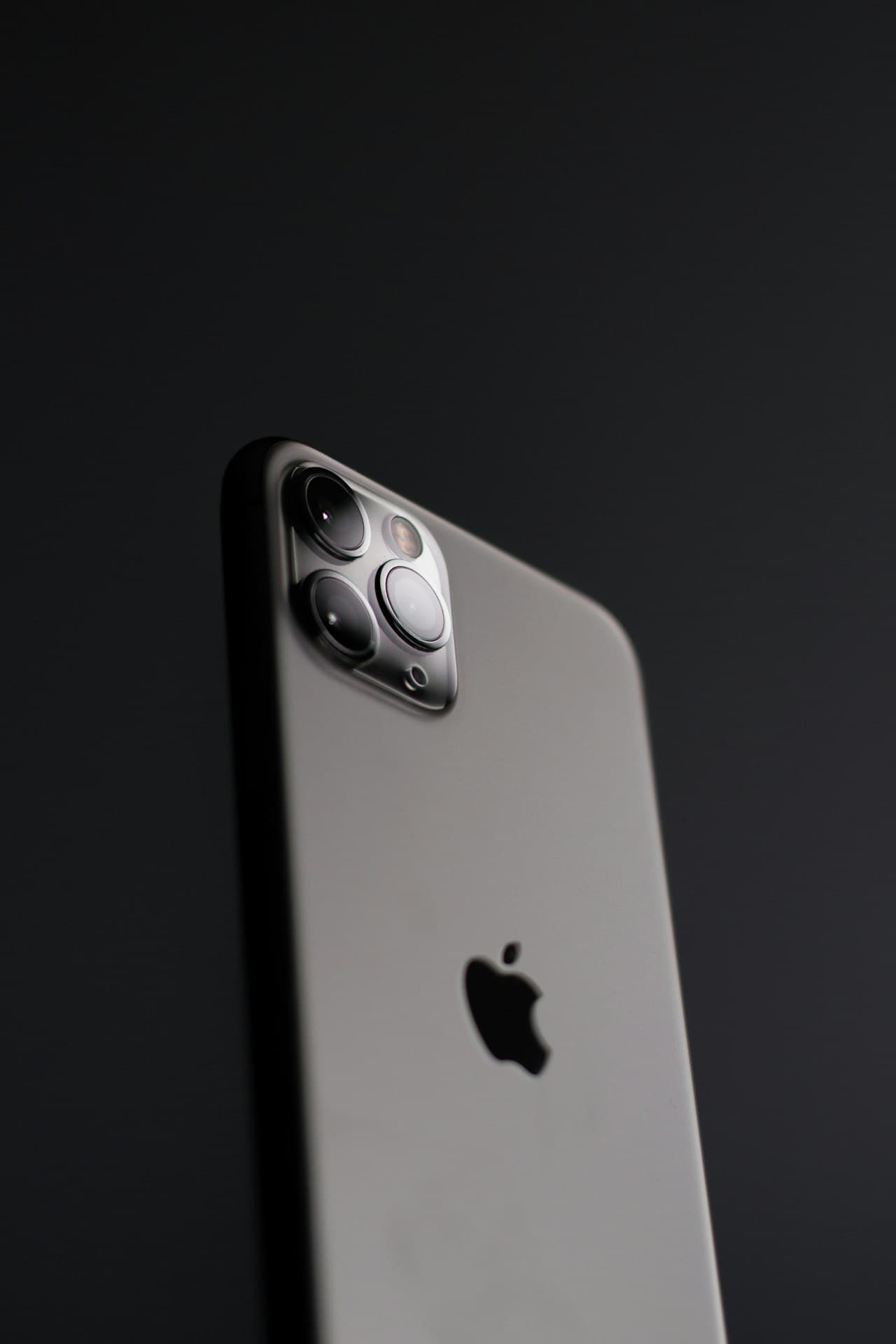


iPhone Face ID Not Working? Complete Troubleshooting Guide
Face ID is remarkably reliable, but when it stops working, it's incredibly frustrating. Whether it's not recognizing you at all or only working intermittently, this guide covers everything you need to know to get it working again.
How Face ID Works
Understanding the technology helps diagnose issues:
The TrueDepth Camera System:
- Dot projector - Projects 30,000 infrared dots onto your face
- Infrared camera - Captures the dot pattern
- Flood illuminator - Provides invisible infrared light
- Proximity sensor - Detects when you're looking at the phone
- Ambient light sensor - Adjusts to lighting conditions
Quick Fixes to Try First
1. Check for Obstructions
Face ID needs a clear view of your face:
- Remove screen protector (especially thick or privacy types)
- Clean the notch/Dynamic Island area - Smudges affect sensors
- Remove case if it covers sensors
- Check for debris in the notch
2. Check Your Face
- Remove sunglasses (unless Face ID is set up with them)
- Remove hats covering forehead
- Don't cover nose or mouth completely
- Position face properly (8-20 inches from phone)
3. Restart Your iPhone
Simple but effective:
Soft restart:
- Hold Side button + Volume button
- Slide to power off
- Wait 30 seconds, power on
- Press and release Volume Up
- Press and release Volume Down
- Hold Side button until Apple logo appears
4. Update iOS
Apple frequently releases Face ID improvements:
- Go to Settings > General > Software Update
- Install any available updates
5. Reset Face ID
If Face ID is set up but not working:
- Go to Settings > Face ID & Passcode
- Enter your passcode
- Tap "Reset Face ID"
- Set up Face ID again from scratch
- Good lighting
- Face centered in frame
- Move head slowly in a complete circle
- Complete both scans
6. Check Face ID Settings
Verify it's enabled for what you need:
- Settings > Face ID & Passcode
- Ensure toggles are on for desired features:
Common Problems and Solutions
Problem: "Face ID is Not Available"
Causes:
- Hardware damage
- TrueDepth camera failure
- Dropped phone impact
- Force restart
- Reset Face ID
- Update iOS
- If persists, hardware repair needed
Problem: "Move iPhone Lower/Higher"
Causes:
- Phone held too close or far
- Sensors partially blocked
- Hold phone 8-20 inches from face
- Ensure nothing blocks notch
- Try different angles
Problem: Face ID Works Sometimes
Causes:
- Lighting conditions
- Face changes (beard, glasses, makeup)
- Dirty sensors
- Clean notch area thoroughly
- Set up "Alternate Appearance" for glasses/different looks
- Re-scan Face ID in consistent lighting
Problem: "Face ID Has Been Disabled"
After too many failed attempts:
- Enter passcode to re-enable
- If problem persists, reset Face ID
- Usually resolved by restart
- May need to reset and re-register
Problem: Face ID Stopped After Screen Repair
Very common issue:
- Non-original screens often break Face ID
- Requires proper calibration
- Some components must be transferred from original screen
Problem: Face ID Stopped After Drop
Impact can damage:
- TrueDepth camera alignment
- Flex cables
- Sensor connections
Software Troubleshooting
Check for Software Conflicts
- Boot in Safe Mode (not officially supported on iPhone, but try DFU restore)
- Delete recently installed apps that might interfere
- Disable VPN temporarily
- Check Restrictions - Screen Time may affect Face ID
Full Reset Options
Reset All Settings:
- Settings > General > Transfer or Reset iPhone
- Reset > Reset All Settings
- This keeps data but resets Face ID
- Use as last resort
- Backup first via iCloud or computer
- Settings > General > Transfer or Reset iPhone
- Erase All Content and Settings
- Connect to computer with iTunes/Finder
- Enter DFU mode
- Restore from backup or set up as new
Hardware Issues
Signs of Hardware Failure
- Face ID unavailable after restart
- Grainy or dark photos with front camera
- Flash/flashlight not working
- Face ID worked then suddenly stopped
Components That Can Fail
Dot Projector:
- Most common failure point
- Cannot be repaired, only replaced
- Requires board-level work
- Affects low-light Face ID
- Often fails with dot projector
- Captures the face map
- Can fail independently
- Connect sensors to logic board
- Can be damaged by drops or repairs
Water Damage
Face ID sensors are sensitive to moisture:
- Even "water-resistant" phones can have Face ID failure after water exposure
- Corrosion may not be immediately apparent
- Professional cleaning may restore function
Face ID After Screen Replacement
Why Third-Party Screens Break Face ID
Apple pairs Face ID components to screens:
- Requires calibration with original parts
- Non-authorized repairs often skip this
- Some parts must be physically transferred
Preserving Face ID During Screen Repair
Our process at RevivaTech:
- Carefully transfer original Face ID assembly
- Use quality replacement screens
- Proper calibration after installation
- Full Face ID testing before return
Can Broken Face ID Be Fixed?
After screen repair:
- Often fixable by proper technician
- May require component transfer
- Sometimes needs Apple calibration
- Depends on what's damaged
- May require board-level repair
- Some cases beyond economical repair
Face ID Repair Options
Apple Repair
Pros:
- Genuine parts
- Official calibration
- Full warranty
- Often expensive (may recommend full device replacement)
- Long turnaround
- Requires appointment
RevivaTech Repair
We offer:
- Expert Face ID diagnosis
- Component-level repair when possible
- Original part transfer for screen repairs
- Professional calibration
| Issue | Cost |
| Face ID diagnosis | Free |
| Face ID recalibration (after screen repair) | £49 |
| TrueDepth camera flex repair | £79-129 |
| Full TrueDepth system repair | £149-249 |
When to Give Up on Face ID
Consider Alternatives If:
- Repair cost exceeds £300
- Phone is 4+ years old
- Multiple hardware issues present
- Passcode works fine for your needs
Living Without Face ID
You can still use:
- 6-digit passcode
- Apple Pay with passcode confirmation
- App authentication with passcode
- Password autofill with passcode
Prevention Tips
Protect Your Face ID
- Quality screen protector - Avoid ones covering sensors
- Good case - Protect from drops
- Keep clean - Regular sensor area cleaning
- Authorized repairs only - For screen replacements
- Handle carefully - The notch is fragile
Book Your Face ID Repair
Face ID issues need expert diagnosis. Our technicians can identify and fix most Face ID problems.
📞 Free diagnostic available 💻 Book your repair
This guide was written by RevivaTech's iOS specialists who have diagnosed and repaired thousands of Face ID issues.
Share this article

Written by
Sarah Mitchell
Senior iOS Device Technician with 8 years of Apple repair experience.