

How to Fix MacBook Overheating: 10 Expert Solutions for 2025
MacBook overheating is one of the most common issues we see at RevivaTech. Whether you have a MacBook Air or MacBook Pro, excessive heat can affect performance, battery life, and even damage internal components. Here are our expert solutions.
Why Does Your MacBook Overheat?
Before diving into solutions, it's important to understand why MacBooks overheat:
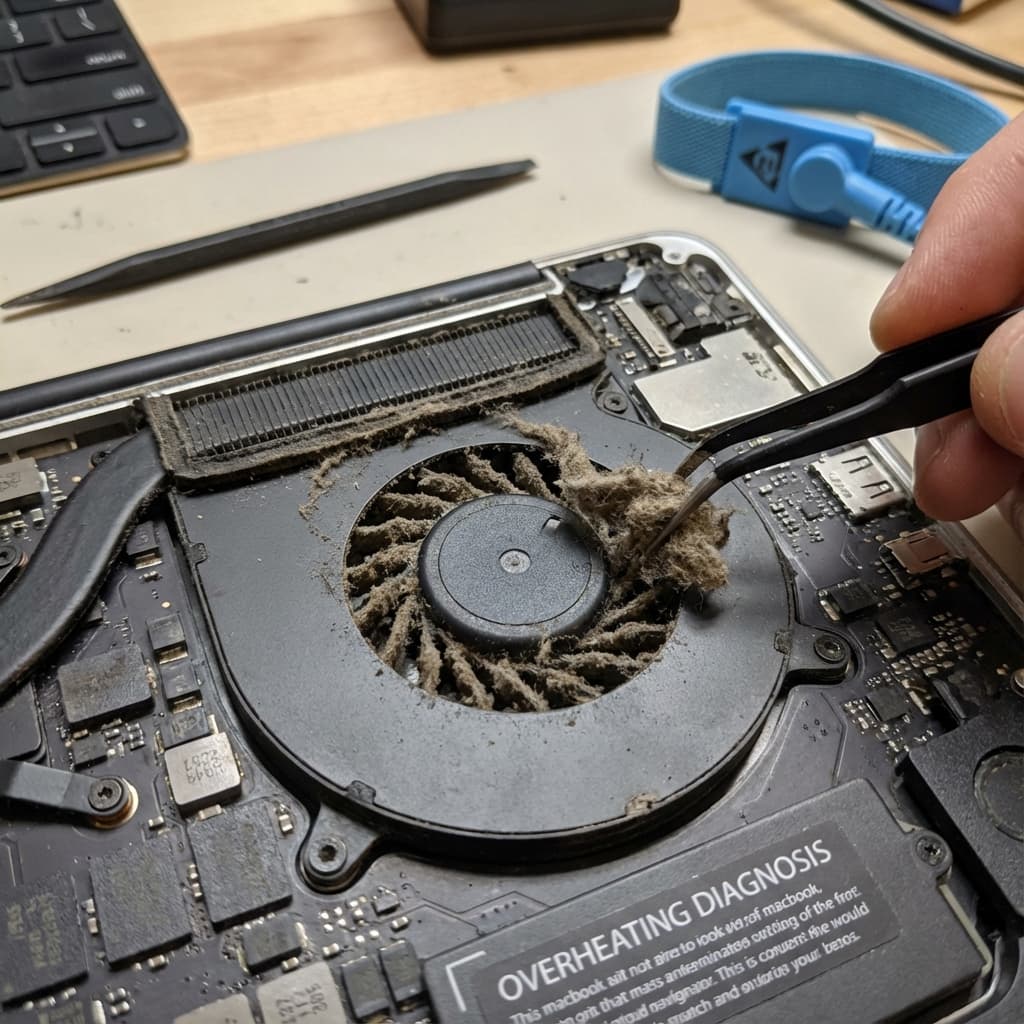
- Dust accumulation in fans and vents
- Aging thermal paste that needs replacement
- Resource-intensive applications running in the background
- Poor ventilation from soft surfaces
- Outdated macOS with inefficient processes
Top 10 Solutions
1. Check Activity Monitor
Open Activity Monitor (Applications > Utilities > Activity Monitor) to identify processes consuming excessive CPU. Sort by "% CPU" to find the culprits.
2. Clean Your Fans
Dust is the #1 cause of overheating. Use compressed air to blow out dust from the vents. For thorough cleaning, consider professional service.
3. Update macOS
Apple frequently releases updates that improve thermal management. Go to System Settings > General > Software Update.
4. Reset SMC
The System Management Controller handles thermal management. Resetting it can resolve many heat-related issues.
For Intel Macs:
- Shut down your Mac
- Hold Shift + Control + Option + Power for 10 seconds
- Release and power on
5. Replace Thermal Paste
If your MacBook is 3+ years old, the thermal paste between the CPU and heatsink may have degraded. Professional replacement can drop temperatures by 10-20°C.
6. Use a Laptop Stand
Elevating your MacBook improves airflow. Look for stands with good ventilation or built-in fans.
7. Manage Chrome Tabs
Chrome is notorious for CPU usage. Consider using Safari or limiting open tabs.
8. Check for Malware
Cryptocurrency miners and other malware can cause excessive CPU usage. Run a malware scan with reputable software.
9. Adjust Energy Settings
Go to System Settings > Battery > Options and enable "Automatic graphics switching" on MacBook Pro models with dual GPUs.
10. Professional Inspection
If none of these solutions work, there may be a hardware issue. Contact RevivaTech for a professional thermal inspection.
When to Seek Professional Help
Bring your MacBook to us if you experience:
- Temperatures consistently above 90°C
- Sudden shutdowns during normal use
- Fan running at maximum speed constantly
- Physical heat causing discomfort
Book Your MacBook Thermal Service
Our certified technicians can clean fans, replace thermal paste, and diagnose any hardware issues. Book your repair today.
This guide was written by RevivaTech's specialist Apple device technicians with over 10 years of MacBook repair experience.
Share this article

Written by
Ronaldo Dias
Ronaldo Dias is the founder of RevivaTech with extensive experience in Apple device repairs.