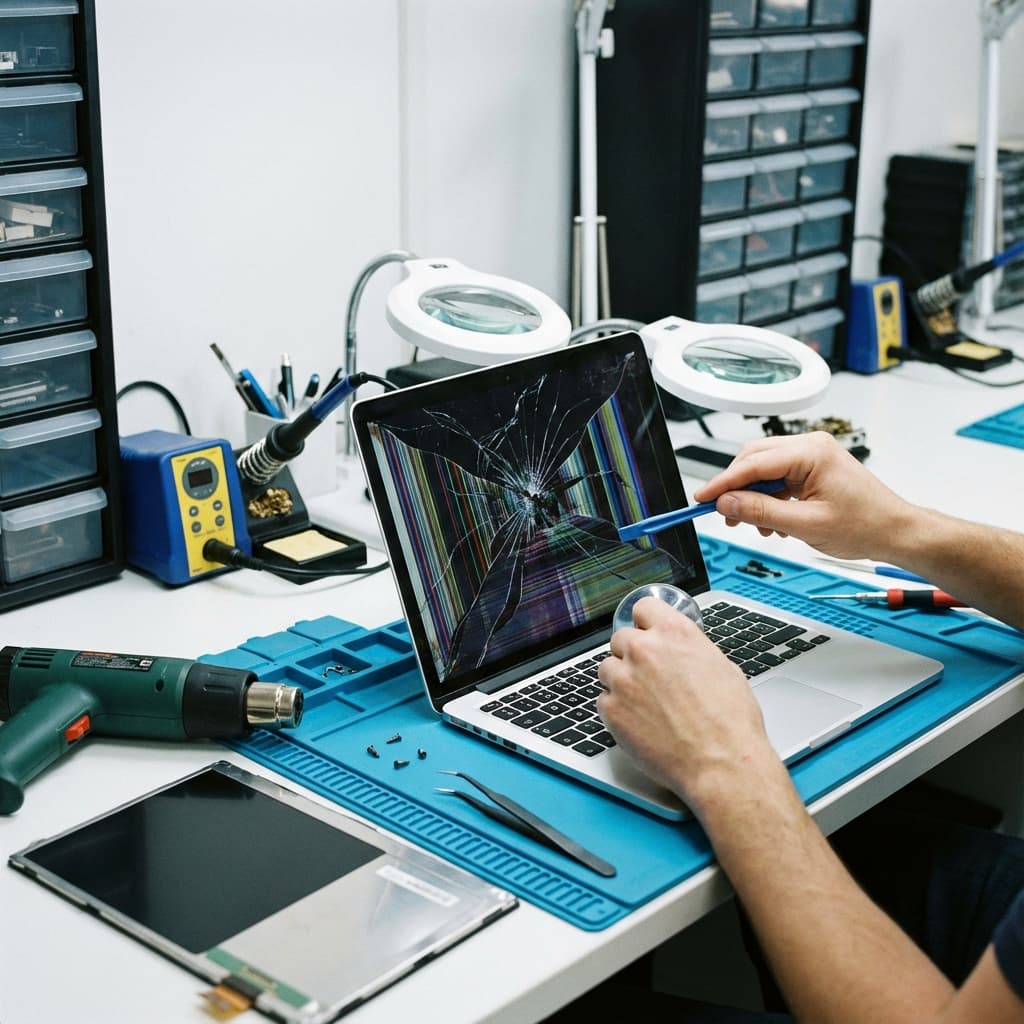


Transform Your Old Laptop: The Complete SSD Upgrade Guide
Is your laptop painfully slow? Does it take minutes to boot up? An SSD (Solid State Drive) upgrade is often the single most impactful upgrade you can make—transforming a sluggish machine into a responsive powerhouse.
Why Upgrade to an SSD?
The Speed Difference is Dramatic
Boot time comparison:
- HDD: 60-120 seconds
- SSD: 10-20 seconds
- NVMe SSD: 5-15 seconds
- Office suite: 3x faster
- Web browsers: 4x faster
- Photo editing: 5x faster
- Video editing: Up to 10x faster
Real-World Benefits
1. Instant Response No more waiting for programs to load. Click and it opens.
2. Multitasking Improvement Open multiple applications without slowdown.
3. Faster File Transfers Copy large files in seconds, not minutes.
4. Better Battery Life SSDs use less power than HDDs.
5. Silence No spinning disk means no noise.
6. Durability No moving parts means more resistance to drops and vibration.
7. Extended Laptop Life Can add 3-5 years of useful life to an older laptop.
Types of SSD Explained
SATA SSD (2.5-inch)
Best for: Older laptops, desktop replacements
Speed: Up to 550 MB/s
Pros:
- Affordable
- Compatible with almost all laptops
- Easy installation
- Significant improvement over HDD
- Slower than NVMe
- May require adapter bracket
- Samsung 870 EVO
- Crucial MX500
- WD Blue
M.2 SATA SSD
Best for: Thin laptops with M.2 slot
Speed: Up to 550 MB/s (same as 2.5-inch SATA)
Pros:
- Smaller form factor
- No cables needed
- Great for ultrabooks
- Not all laptops support it
- Same speed as 2.5-inch SATA
M.2 NVMe SSD
Best for: Modern laptops (2017+), gaming, professional work
Speed: Up to 7,000 MB/s (Gen4)
Pros:
- Extremely fast
- Compact form factor
- Ideal for demanding tasks
- More expensive
- Requires NVMe-compatible slot
- Can run warm
- Samsung 980 Pro
- WD Black SN850X
- Crucial P5 Plus
How to Choose the Right SSD
Check Compatibility First
For laptops with standard HDD bay:
- 2.5-inch SATA SSD will work
- Check if it's SATA or NVMe
- Check the key type (B, M, or B+M)
- Check the length (2280 is most common)
- Crucial's System Scanner
- Manufacturer specifications
- Or ask us—we check for free
How Much Storage Do You Need?
| Usage Type | Recommended Size |
| Basic (web, email, documents) | 256GB |
| Standard (plus photos, light gaming) | 512GB |
| Power user (gaming, media) | 1TB |
| Professional (video editing, large files) | 2TB+ |
Budget Considerations
2.5-inch SATA:
- 256GB: £30-45
- 512GB: £45-65
- 1TB: £70-100
- 2TB: £130-180
- 256GB: £35-55
- 512GB: £55-80
- 1TB: £80-130
- 2TB: £150-250
The Upgrade Process
What You'll Need
- New SSD
- Screwdriver (usually Phillips #0 or #1)
- USB-to-SATA adapter (for cloning)
- Cloning software (free options available)
- Anti-static wrist strap (recommended)
Option 1: Clone Your Existing Drive
Advantages:
- Keep all your programs and settings
- Minimal setup required
- Seamless transition
- Connect new SSD via USB adapter
- Download cloning software (Macrium Reflect, Samsung Magician, etc.)
- Clone old drive to new SSD
- Physically swap the drives
- Boot and verify
Option 2: Fresh Windows/macOS Install
Advantages:
- Clean start without accumulated junk
- Optimal performance
- Opportunity to reorganize
- Back up important files
- Create bootable USB installer
- Physically install new SSD
- Install fresh operating system
- Restore files from backup
Installation Steps (2.5-inch SATA)
- Backup everything important
- Power off and remove battery (if removable)
- Remove back panel screws
- Locate HDD bay
- Remove mounting bracket from old drive
- Disconnect cables carefully
- Attach bracket to new SSD
- Connect cables to SSD
- Secure SSD in bay
- Replace back panel
- Boot and verify
Installation Steps (M.2)
- Backup and power off
- Remove back panel
- Locate M.2 slot
- Remove mounting screw
- Insert M.2 SSD at 30-degree angle
- Press down and secure with screw
- Replace back panel
- Boot and verify
Post-Upgrade Optimisation
Enable TRIM
TRIM helps maintain SSD performance over time.
Windows:
Usually enabled by default. Check in Command Prompt:
fsutil behavior query DisableDeleteNotify
(0 means TRIM is enabled)
macOS: Enabled by default for Apple-approved SSDs.
Adjust Power Settings
Windows:
- Go to Power Options
- Choose "High Performance" for desktops
- Keep "Balanced" for laptops
Move Temp Files (Optional)
If you have limited SSD space:
- Move Downloads folder to secondary drive
- Relocate temp files
- Configure OneDrive/Dropbox to selective sync
Disable Defragmentation
SSDs don't need defragmentation—it actually reduces lifespan.
- Windows 10/11 automatically uses TRIM instead
- Verify in Defragment and Optimize Drives
SSD Upgrade Pricing at RevivaTech
Parts + Installation
| Storage | SATA SSD | NVMe SSD |
| 256GB | £69 | £79 |
| 512GB | £89 | £99 |
| 1TB | £129 | £149 |
| 2TB | £199 | £249 |
- Quality SSD (Samsung, Crucial, WD)
- Professional installation
- Data cloning (optional, add £20)
- 12-month warranty
- Performance verification
Our Process
- Free Assessment
- Data Backup
- Installation
- Data Migration
- Testing
When NOT to Upgrade
Consider a New Laptop Instead If:
- ❌ Laptop is 8+ years old
- ❌ CPU is extremely outdated (pre-2015)
- ❌ RAM is 4GB and not upgradeable
- ❌ Other components failing
- ❌ Upgrade cost exceeds 50% of new laptop price
The Sweet Spot
Best candidates for SSD upgrade:
- 3-6 year old laptops
- i5/i7 or Ryzen 5/7 processors
- 8GB RAM (or upgradeable to 8GB)
- Good build quality
- Current HDD as only performance bottleneck
Book Your SSD Upgrade
Ready to breathe new life into your laptop? Our technicians can upgrade your storage quickly and professionally.
📞 Free compatibility check 💻 Book your SSD upgrade
Same-day service available for most laptop models.
This guide was written by RevivaTech's hardware specialists. We've performed thousands of SSD upgrades and know exactly how to maximize your laptop's potential.
Share this article

Written by
James Chen
Hardware Upgrade Specialist with expertise in storage solutions and system optimization.