A MacBook screen that suddenly looks “dead” can be surprisingly ambiguous. Sometimes it really is a broken display. Other times the computer is running perfectly, but the light behind the image has failed, so you are staring at a dark panel that is still quietly drawing the desktop.
Backlight faults are one of the most misunderstood screen problems because they can mimic a crash, a graphics issue, or physical damage, and it's crucial to identify macbook screen backlight not working symptoms to properly diagnose the issue. The good news is that the symptoms tend to be consistent, and a few careful checks can get you very close to the right diagnosis.
What “backlight not working” actually means
Your MacBook display is not just one layer. In simple terms, there is an LCD panel that creates the picture, and an LED backlight system that shines through it so you can see it in normal lighting.
When the backlight fails, the LCD may still be producing a perfectly valid image. It is just unlit.
That distinction matters because it changes what you look for: backlight problems are mainly about brightness behaviour, not about cracks, ink-like blotches, or chunks of missing image.
The most telling symptom: the torch test
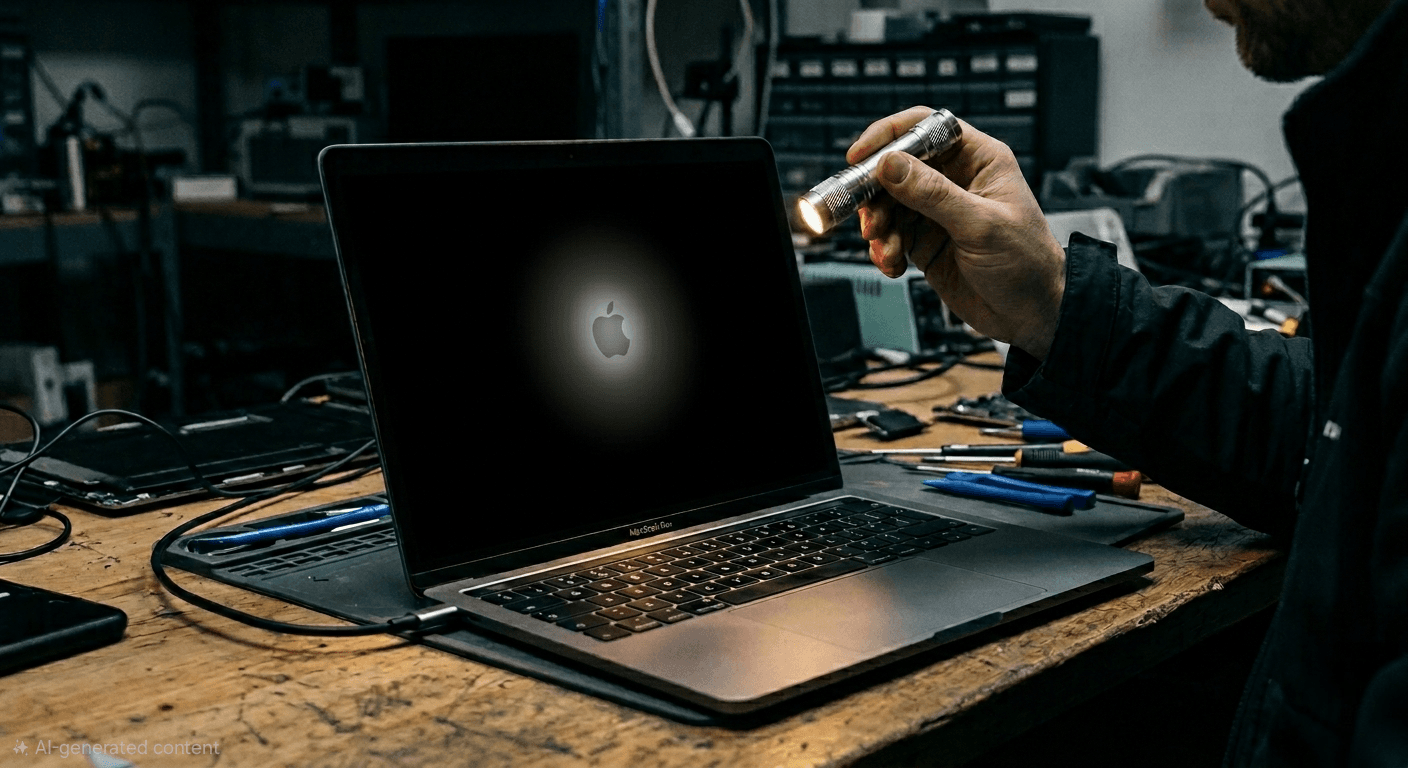
If your MacBook is on (you can hear the startup chime on older models, keyboard backlight reacts, trackpad clicks, or you get notification sounds) but the screen looks black, the simplest check is a bright torch.
Shine the torch at an angle onto the screen and look closely for a faint desktop, login window, or mouse pointer. If you can see a dim image, the LCD is working and the backlight is the issue.
This one observation immediately narrows the field. A screen with a working LCD but no light points away from “the MacBook is dead” and towards display power, backlight circuitry, or (on some models) a worn flex cable that affects backlight delivery.
Common MacBook backlight failure symptoms
Backlight faults rarely present as a single neat moment of failure. Many begin as “odd” brightness behaviour before the screen goes very dim.
After you have observed the basic dark-or-dim state, these are the patterns that tend to show up:
- Very dim screen at any brightness setting: You can still make out the image with a torch, but normal viewing is difficult.
- Backlight flicker or pulsing: The display brightness seems to flutter, often more obvious at lower brightness.
- Uneven lighting: Brighter and darker patches, sometimes concentrated near the bottom edge.
- Works briefly, then goes dark: The screen lights for a moment during boot, then fades out while the Mac continues running.
Crack, LCD break, or backlight: what changes and what stays put
Physical damage tends to be visually obvious once you know what to look for. A hairline crack may leave most of the image intact, while a spiderweb crack or internal LCD fracture can overwhelm the panel with black shapes, colour smears, or dead areas.
Backlight problems are different because the picture is often still “correct” underneath. Icons are in the right place. The login box is where it should be. You just cannot see it properly.
Here is a practical way to separate them:
- Cracks in the glass: usually visible as a line you can catch with a fingernail, and they do not change with brightness settings.
- Internal LCD damage: often shows “ink blot” patches, coloured bleeding, or hard-edged blocks of missing image, even if the outer glass looks fine.
- Backlight failure: the panel looks black or extremely dim, and brightness keys do not restore normal illumination.
When it is not the backlight: flex cable wear that looks similar
Some MacBook models, especially certain 2016 to 2020 MacBook Pros, can develop wear in the display flex cable area. People often call this “Flexgate”. It can affect either the backlight, the image signal, or both, which is why the symptoms can overlap with a pure backlight fault.
The giveaway is angle dependence. If opening the lid to a certain point causes the screen to brighten, dim, flicker, show bands, or cut out, that points strongly to a cable or connector path that is being stressed by movement, commonly referred to as 'flexgate' in some models.
A related hallmark is the “stage light” effect: uneven bright bands along the bottom of the screen that resemble footlights on a stage. That effect sits in the backlight family, but the root cause is often mechanical wear in the cable region rather than a random LED strip failure.
When it is not the backlight: GPU or logic-board graphics issues
Graphics faults can also create a black screen, yet the texture of the problem is different.
A true graphics path issue is more likely to:
- affect both the built-in display and an external monitor
- produce artefacts that are part of the image content (blocks, tearing, random colours)
- persist regardless of lid angle or brightness settings
Safe checks you can do before booking a repair
You can gather strong evidence without opening the MacBook or forcing anything. Keep it gentle: a failing cable can worsen if repeatedly flexed, and a damaged LCD can spread if pressed.
Run through a short, disciplined set of checks and make notes of what you see. That “symptom diary” helps a technician move faster and avoid guesswork.
Here are useful checks that stay on the safe side:
- Torch test: Look for a faint login screen or desktop on a “black” display.
- Brightness keys: Confirm the on-screen brightness overlay appears (even if the screen is hard to see) and note whether anything changes.
- External display test: Connect a monitor via HDMI or USB-C and compare the output.
- Lid angle behaviour: Slowly open and close a small amount and watch for flicker, stage lighting, or dropouts.
- Apple Diagnostics: Run the built-in hardware test (where supported) to see whether it flags a display-related fault.
Symptoms mapped to likely causes (quick guide)
The combinations matter more than any single sign. This table pulls the most useful pairings together.
| What you observe | What it often suggests | What to check next |
| Screen looks black, MacBook seems to run, faint image visible with torch | Backlight not powering on | External monitor output, brightness behaviour |
| Screen is very dim, usable only in a dark room | Backlight degradation, driver issue, or early cable wear | Flicker at low brightness, lid-angle sensitivity |
| Uneven brightness along bottom edge (“stage light”) | Flex cable wear affecting backlight delivery | Lid-angle test, history of gradual worsening |
| Vertical lines or bands that change as you move the lid | Flex cable or connector path issue | External monitor comparison, angle-dependent dropout |
| Ink-like blotches, colour bleeding, hard black areas | Internal LCD damage (even without visible crack) | Visual inspection in bright light, avoid pressure |
| Visible crack but image otherwise stable | Glass damage, possibly still functional LCD | Assess whether crack spreads or affects touch/closure |
| Both internal and external displays show corruption | Graphics path or logic-board issue | Diagnostics, professional board-level testing |
What a repair typically involves when the backlight is the problem
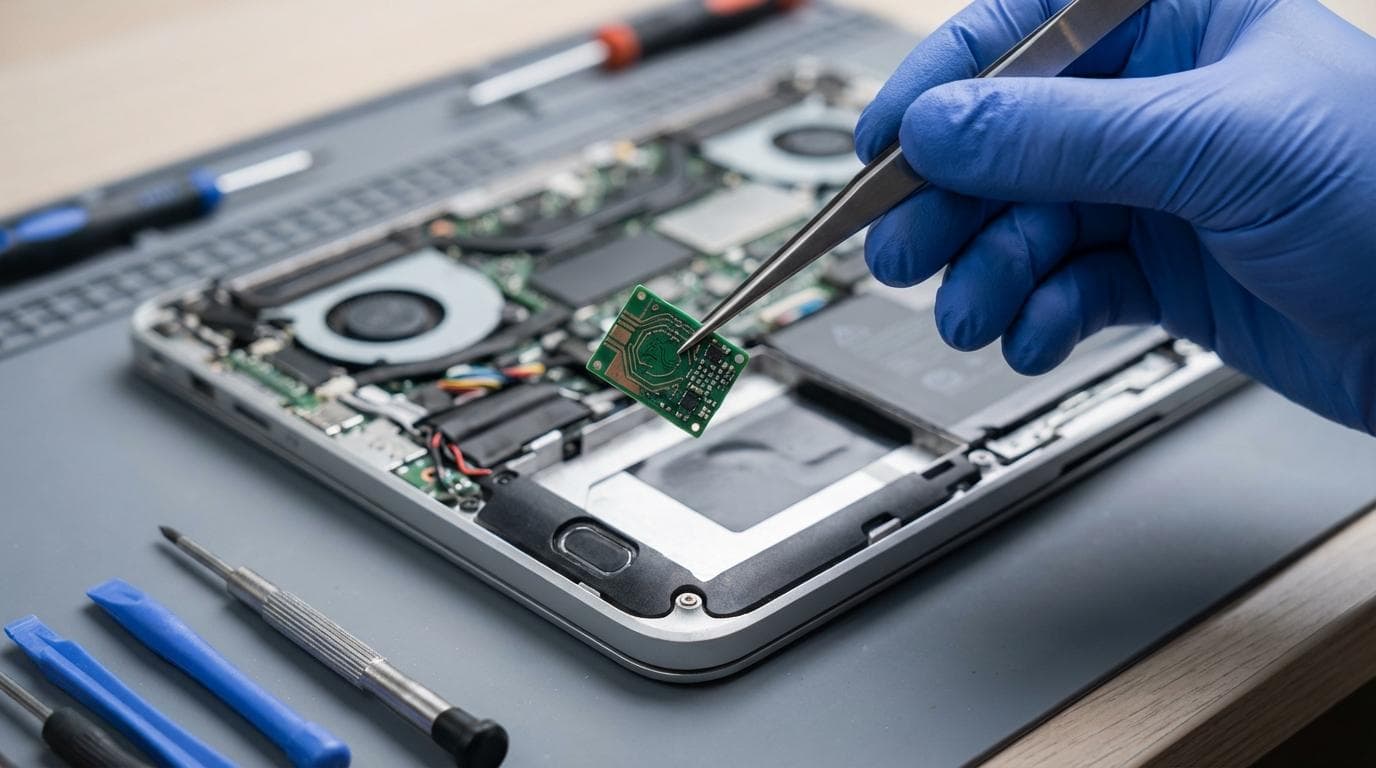
Backlight faults can come from several places: the LED array within the display, the backlight driver circuitry, a damaged connector, or wear in the flex cable path. On many modern MacBooks, the practical and reliable repair is often a complete display assembly replacement, because the backlight components are integrated into the screen assembly.
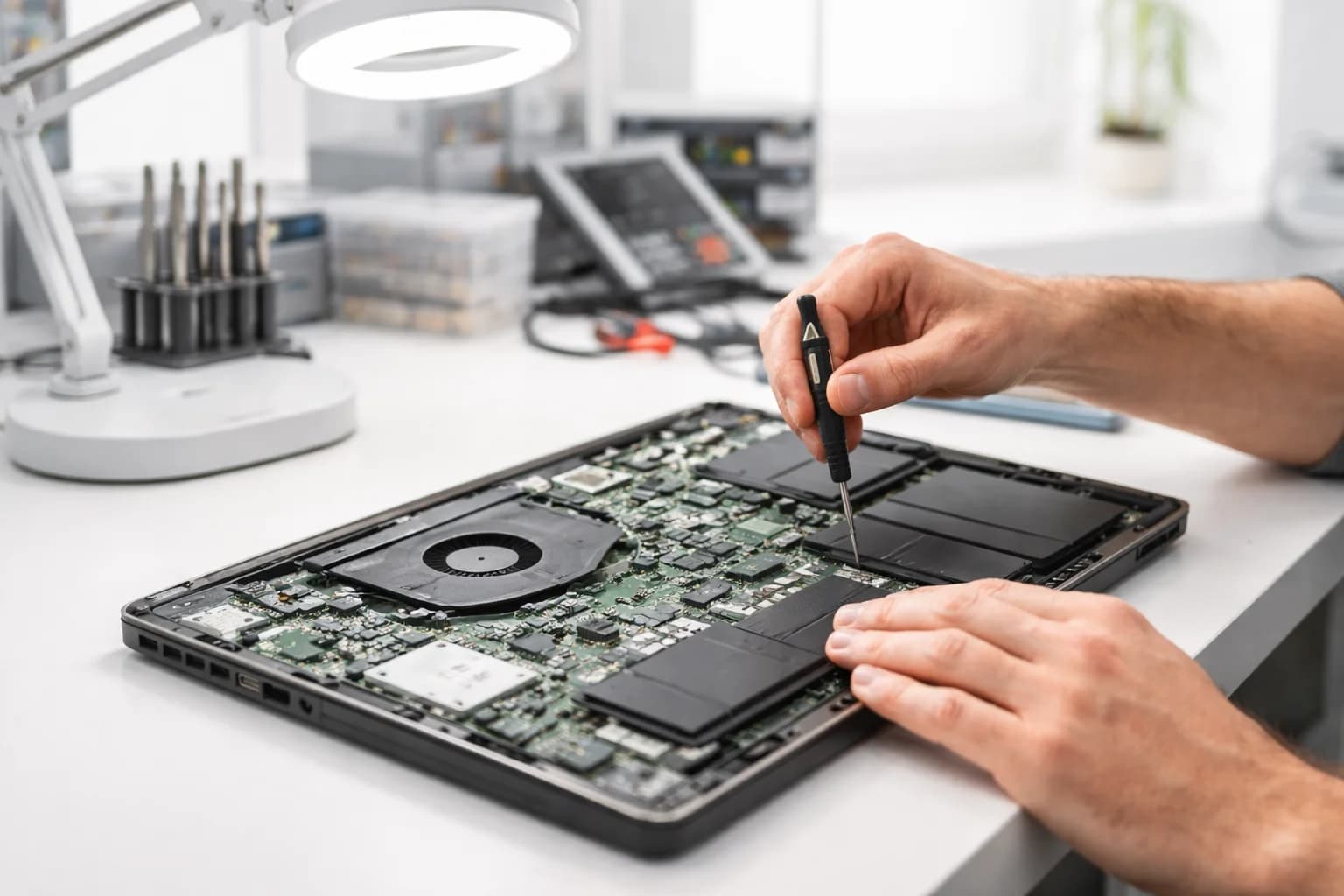
In some cases, especially where the backlight circuit on the logic board is involved, a component-level repair may be possible. That is a different skillset to screen swapping: it needs proper diagnostics, microscopic inspection, and the right tools to repair power rails and connectors cleanly.
A professional repair process generally looks like this:
- confirm whether the LCD image exists (torch test and pattern checks)
- verify GPU output with an external screen
- inspect for impact, liquid indicators, and hinge-related strain
- quote based on model, display type, and whether the fault is isolated to the display assembly or tied to board-level circuitry
A good warranty also matters. Backlight faults are the kind of issue you want to be confident will stay fixed, not drift back over the next few months.
Why backlight issues get misdiagnosed
Backlight failure is one of the few faults that can make a fully working MacBook appear dead. If you only judge by a black screen, you may assume the worst.
A few other factors add to the confusion:
- Auto-brightness and True Tone can mask early symptoms by constantly adjusting the panel.
- Low-brightness flicker can look like a software glitch when it is actually a tired backlight driver.
- Flex cable wear can start as subtle uneven lighting long before obvious dropouts appear.
Reducing the chance of it happening again
Not every backlight failure is preventable, but you can reduce mechanical stress and avoid the kinds of pressure events that trigger screen assembly failures.
Small habits help, especially on thin-bezel models:
- Close the lid slowly and from the centre
- Keep the keyboard area free of small objects before shutting
- Avoid twisting the display by lifting from one corner
- Use a well-fitted sleeve or case for travel
- Keep liquids well away from the hinge area
If your MacBook screen is dark right now
Start with evidence, not assumptions. Check whether the MacBook is actually running, use the torch test, then try an external display. If the internal screen shows a faint image under light, you are not dealing with “no image”, you are dealing with “no light”.
That single distinction guides everything that follows, from the likely parts involved to the fastest, most reliable repair route.
Differentiating Between Crack and Backlight Issues
Signs of Flex Cable Problems in Your Device
Tips for Addressing Common Display Faults
Understanding MacBook Screen Damage
Identifying a Cracked Screen
Visible Signs of Screen Cracks
Impact of Cracks on Screen Functionality
Recognising Backlight Issues
Common Symptoms of Backlight Failure
Causes of Backlight Problems
Diagnosing Flex Cable Issues
Symptoms of Flex Cable Damage
How Flex Cable Affects Display
Comparing Crack, Backlight, and Flex Cable Damage
Troubleshooting When MacBook Screen Backlight Not Working
Step-by-step Diagnosis Guide
DIY Fixes vs Professional Repair
Preventing Screen Damage
Protective Measures for Your MacBook
Best Practices for Daily Use
When to Consult a Professional Technician
Cost Implications of Repair and Replacement
Tips for Choosing the Right Repair Service
Troubleshooting Display Problems: What to Look For
Share this article
Written by
Ronaldo Dias
Tech repair specialist and founder of RevivaTech, with years of experience in Apple, Samsung, and gaming console repairs.