A laptop that refuses to power on can feel dramatic, especially when you need it for work, study, or a deadline you cannot move. The good news is that many “dead” laptops are actually dealing with something simple: no power reaching the system, a battery that has fallen below a usable threshold, or a display that is not showing what the machine is doing.
Take a breath, slow the process down, and treat it like a quick triage. You are not guessing; you are narrowing the fault.
Start by defining what “won’t turn on” looks like
Before you try fixes, observe what happens when you press the power button. Those first two seconds tell you a lot.
If there are no lights, no fan noise, no warmth, no chime, you are likely dealing with power delivery: mains, charger, cable, DC jack, or charging circuitry.
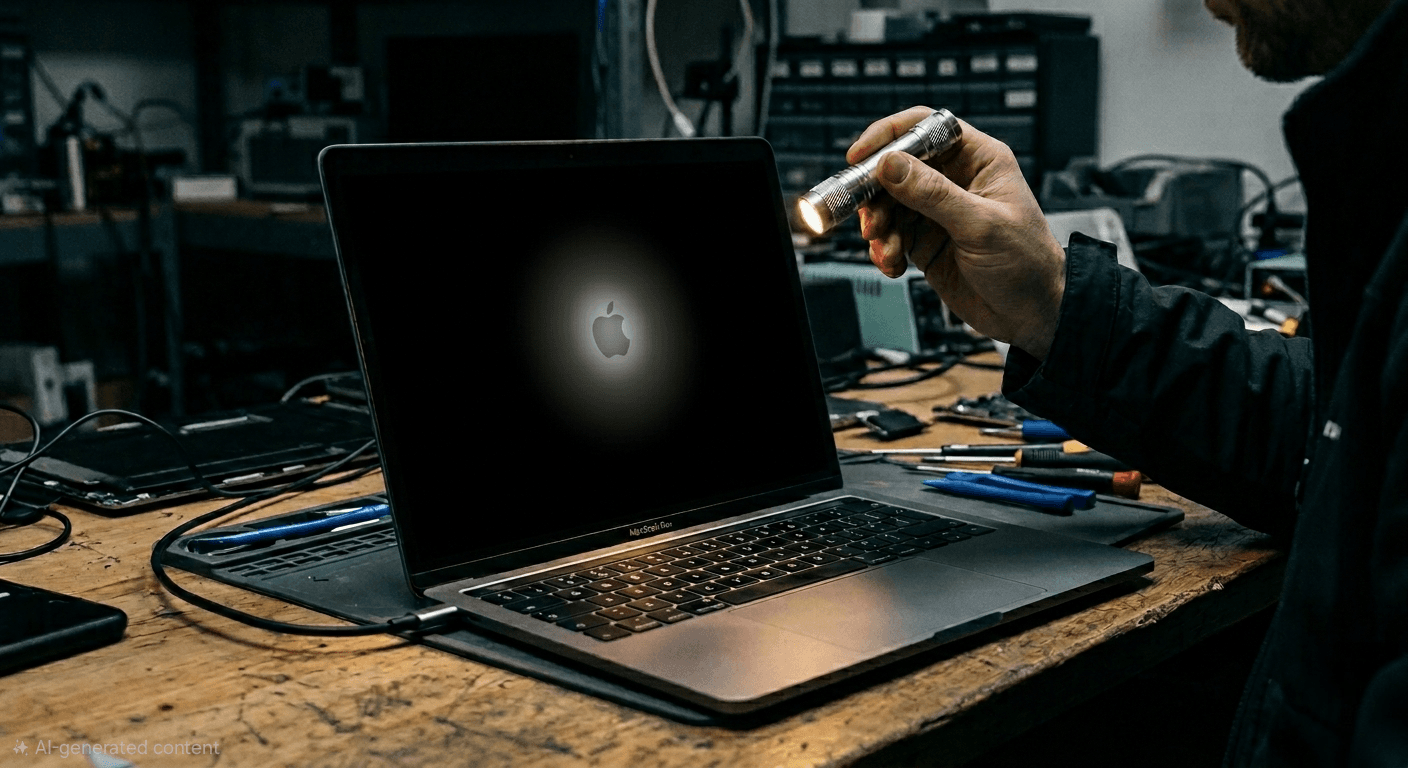
If you get lights and fan spin but the screen stays black, the laptop may actually be on, and the issue may be display related (panel, backlight, cable) or a “no POST” hardware fault.
If it tries to start then cuts out, that can point to short circuits, failing power rails, liquid damage, overheating protection, or occasionally firmware trouble.
A quick map of causes and what they look like
This table is a useful mental shortcut. It does not replace diagnosis, but it helps you pick the next sensible check rather than repeating the same action.
| Cause area | Common examples | What you typically notice |
| Power supply | Dead wall socket, faulty extension lead, damaged charger, broken cable, worn DC jack | No LEDs, no fan, no response at all |
| Battery | Worn battery, deep discharge, charging fault | Works only on mains, refuses to charge, charge light behaves oddly |
| Internal hardware | RAM not seated, board level power fault, failed component | Power light may come on, fans may spin, then nothing (sometimes beeps or blinking codes) |
| Display path | Failed panel, backlight issue, loose display cable | Laptop seems to run, but screen is black or extremely dim; external monitor may work |
| Firmware or boot | BIOS/UEFI corruption, storage not detected, bootloader failure | Manufacturer logo loop, error messages, “no boot device”, stalls early in startup |
Seven checks to run before you assume the worst
Run these in order. Each step is designed to isolate one variable, so resist the urge to jump around.
- Confirm the wall power is real
- Inspect the charger, cable, and plug ends
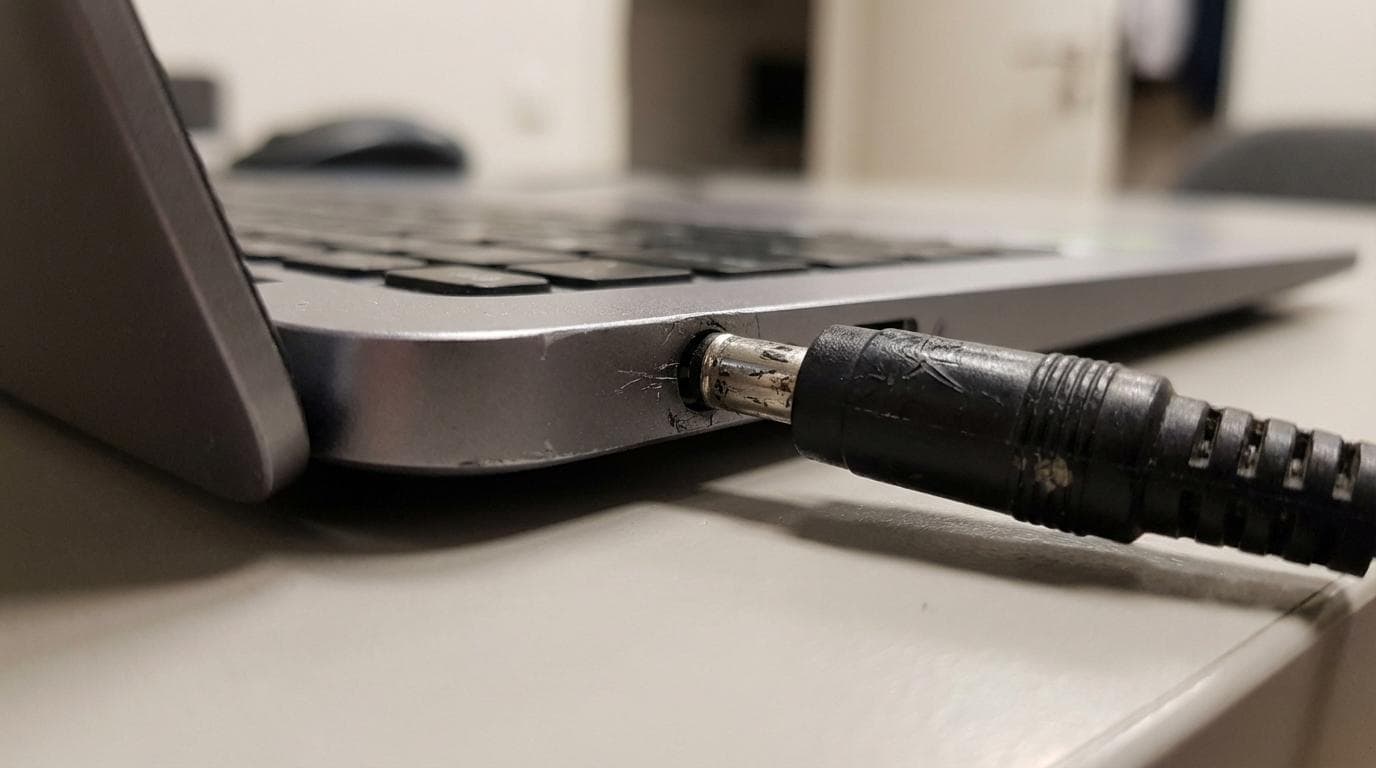
- Check the laptop’s power port and fit
- Try a battery-free start (if your model allows it)
- Perform a power reset to clear a stuck power state
- Reduce the system to “nothing attached”
- Work out whether it’s powering on but not displaying
When the symptoms point to deeper hardware trouble
Some signs should shift you from “home checks” to “protect the device and your data”. Continuing to force starts can turn a repairable fault into a larger one.
Watch and listen for patterns. Many laptops use blinking LEDs or beep codes to indicate failures during the power-on self-test. Those codes vary by manufacturer, so they are best checked against your model’s service information.
After you have run the seven checks above, these warning signs matter most:
- Liquid exposure: any spill, sticky residue, or corrosion around ports or under keys
- Heat or smell: hot spot near the charger port, burnt odour, clicking or sizzling sounds
- Battery swelling: bulging case, trackpad lifting, wobbling on a flat desk
- Instant shutdown: power light comes on then dies within seconds, repeatedly
- Visible damage: cracked chassis near hinges, bent USB-C/charging port, impact marks
A simple decision guide you can use in real time
It helps to turn observations into next actions. This is a compact way to do that.
After you have noted what the laptop is doing, use this guide:
- No lights, no fan, nothing: focus on wall power, charger, cable, DC jack, power reset
- Lights and fan, black screen: test external display, brightness keys, display path
- Starts then stops: disconnect peripherals, consider internal hardware fault, stop if heat or smell appears
- Logo loop or errors: storage detection, firmware, operating system recovery (if you can reach it)
What to do if you need the laptop today
Sometimes the priority is not “perfect diagnosis”, it is getting access to files, email, or coursework as fast as possible.
If the laptop shows signs of life but will not boot into the operating system, you may still be able to:
- reach the BIOS/UEFI screen (often via F2, Del, Esc, or a manufacturer key)
- boot from a recovery USB (if you already have one prepared)
- use an external monitor to confirm whether it is only the internal screen that has failed
Preventing a repeat: small habits that make a big difference
You cannot avoid every failure, yet you can reduce the odds with a few practical routines that protect power delivery, cooling, and battery health.
A good baseline looks like this:
- Keep vents clear and dust under control
- Use a quality charger that matches the device specification
- Avoid deep battery drains as a routine habit
- Keep liquids well away from the keyboard and ports
- Do not leave the laptop in extreme heat (cars, direct sun, radiators)
When it’s time to bring in a repair lab
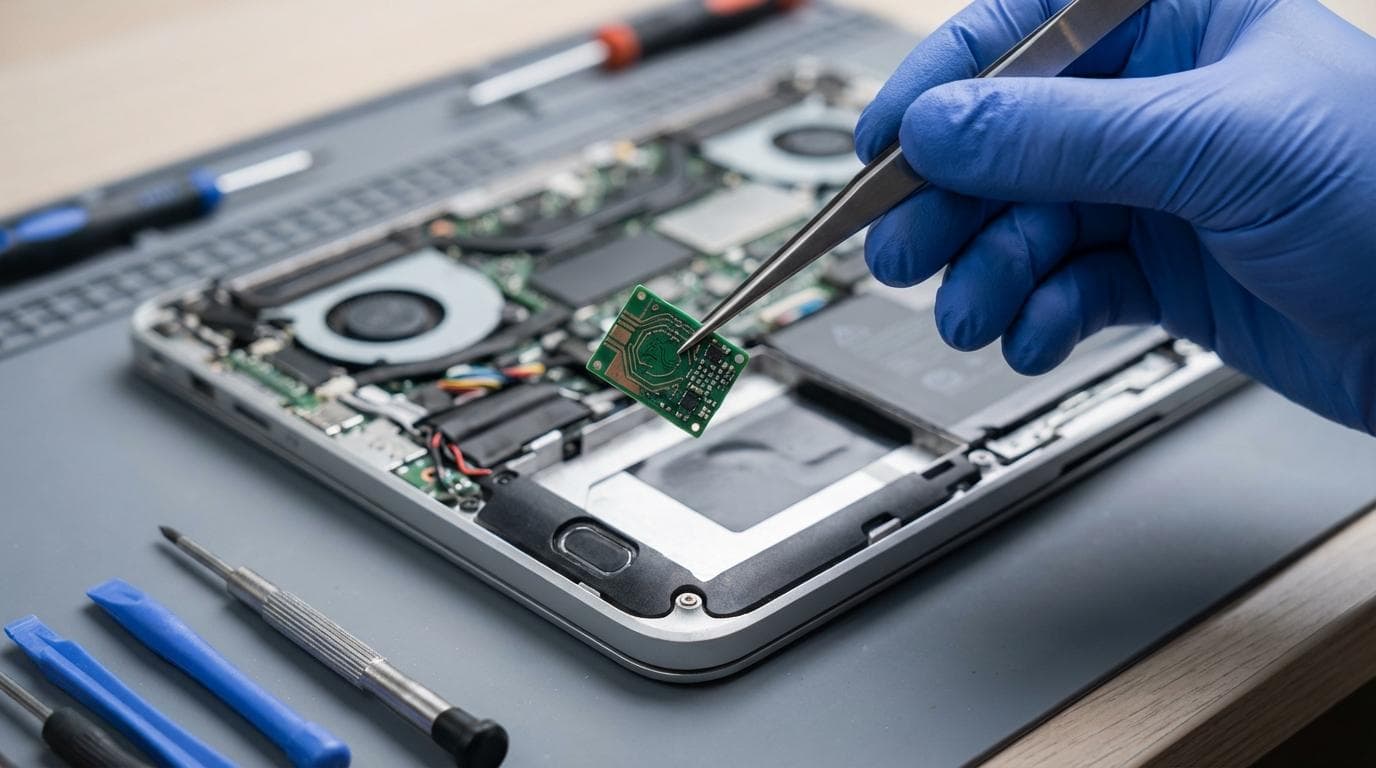
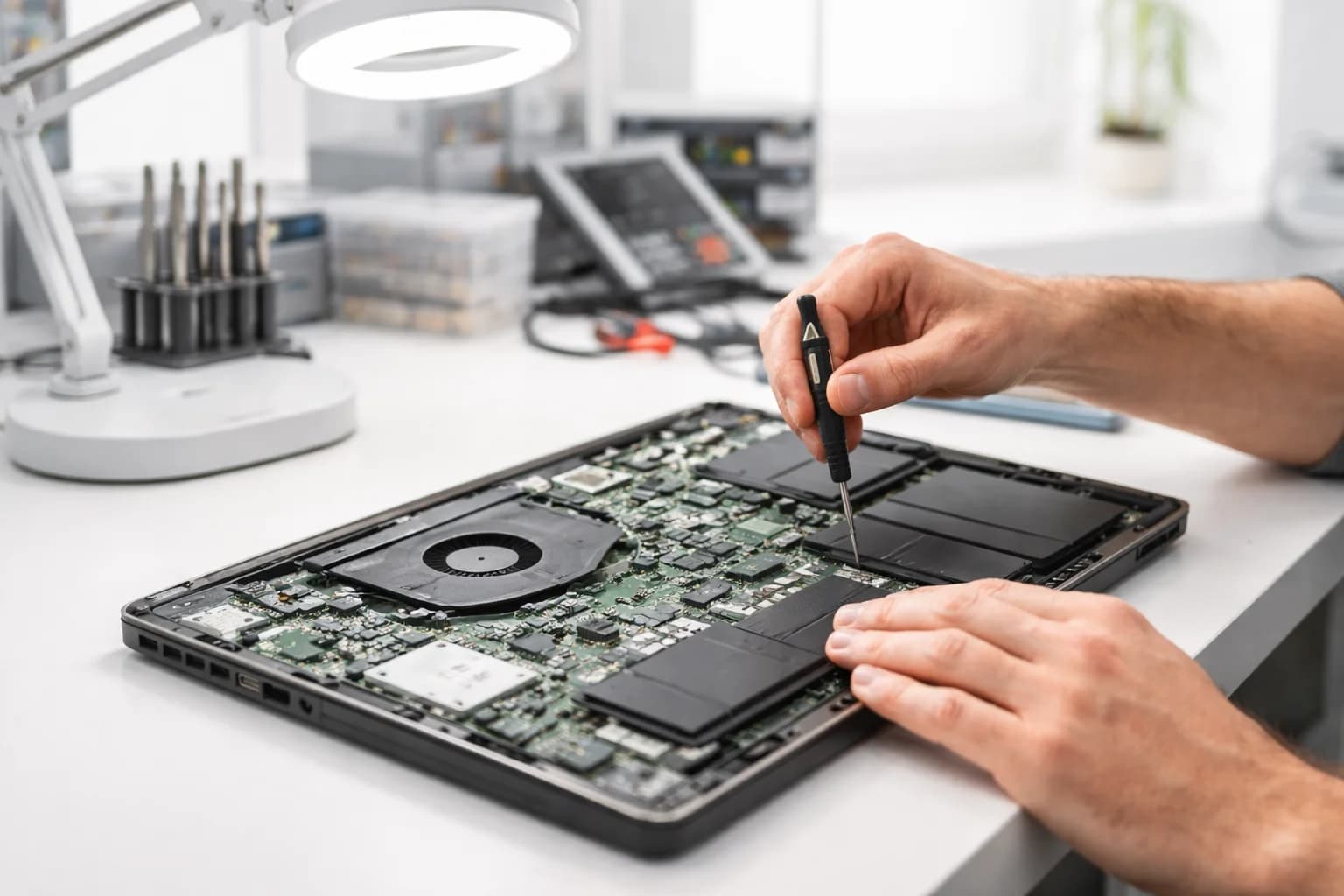
If your laptop still will not start after the seven checks, the fault is often inside the device: a failing battery pack, damaged charging circuit, corrupted firmware, RAM issues, or board level power faults. That is where proper diagnostics tools and known-good parts matter, because they allow a technician to test rather than speculate.
A repair service such as RevivaTech focuses on structured diagnosis and clear communication. For many customers, the most reassuring parts are the practical ones: fixed labour pricing with transparent estimates, in-house repairs by experienced technicians using manufacturer-level tools and genuine parts, and a 12-month repair warranty on completed work. Fast turnaround helps too, especially when same-day or emergency options are available.
If you do decide to book a diagnostic, you can speed things up by sharing a few details up front:
- what you see when you press power (lights, fan, beeps, nothing)
- whether it works on mains with the battery removed (if possible)
- whether an external monitor shows an image
- any recent events (drop, travel, liquid, update, new dock or charger)
Share this article
Written by
Ronaldo Dias
Tech repair specialist and founder of RevivaTech, with years of experience in Apple, Samsung, and gaming console repairs.