Spilling water on a laptop triggers a very human response: save the work, dab the keyboard, check if it still runs. The problem is that liquid damage is less about the splash you can see and more about what happens electrically in the seconds after it gets inside.
If you get the first ten minutes right, you give the device a genuine chance. Not perfection, not a guarantee, but a much better starting point for recovery and repair.
Why speed matters more than “drying it out”
Water on its own is not always the main villain. The real risk is current flowing where it should not, which can short components, blow tiny fuses, and start corrosion. Even a laptop that seems fine can fail later if residue stays on the board.
This is why “checking if it still works” is often the most expensive test you can perform.
The first 10 minutes: a calm, fast routine
Think of these ten minutes as electrical first aid. Your aim is to remove power, stop the spread, and buy time.
Start by prioritising actions in this order:
- Power: shut down immediately, unplug, disconnect chargers and accessories
- Position: tilt to let liquid escape, without shaking
- Blot: absorb surface liquid with a lint-free cloth
- Pause: resist testing, charging, or “just a quick reboot”
Laptop spill on the keyboard: what to do straight away
Laptops are vulnerable because the keyboard is basically a wide entry point into the chassis. Water can drip onto the motherboard, battery connections, trackpad cables, and storage.
Once you have cut the power, do this:
- Force a shutdown if needed. If the screen is still on, hold the power button until it goes off.
- Unplug from the mains. Remove USB devices, memory cards, external displays, everything.
- Remove the battery if your model allows it. Many modern laptops have internal batteries, so do not dismantle it if you are not confident.
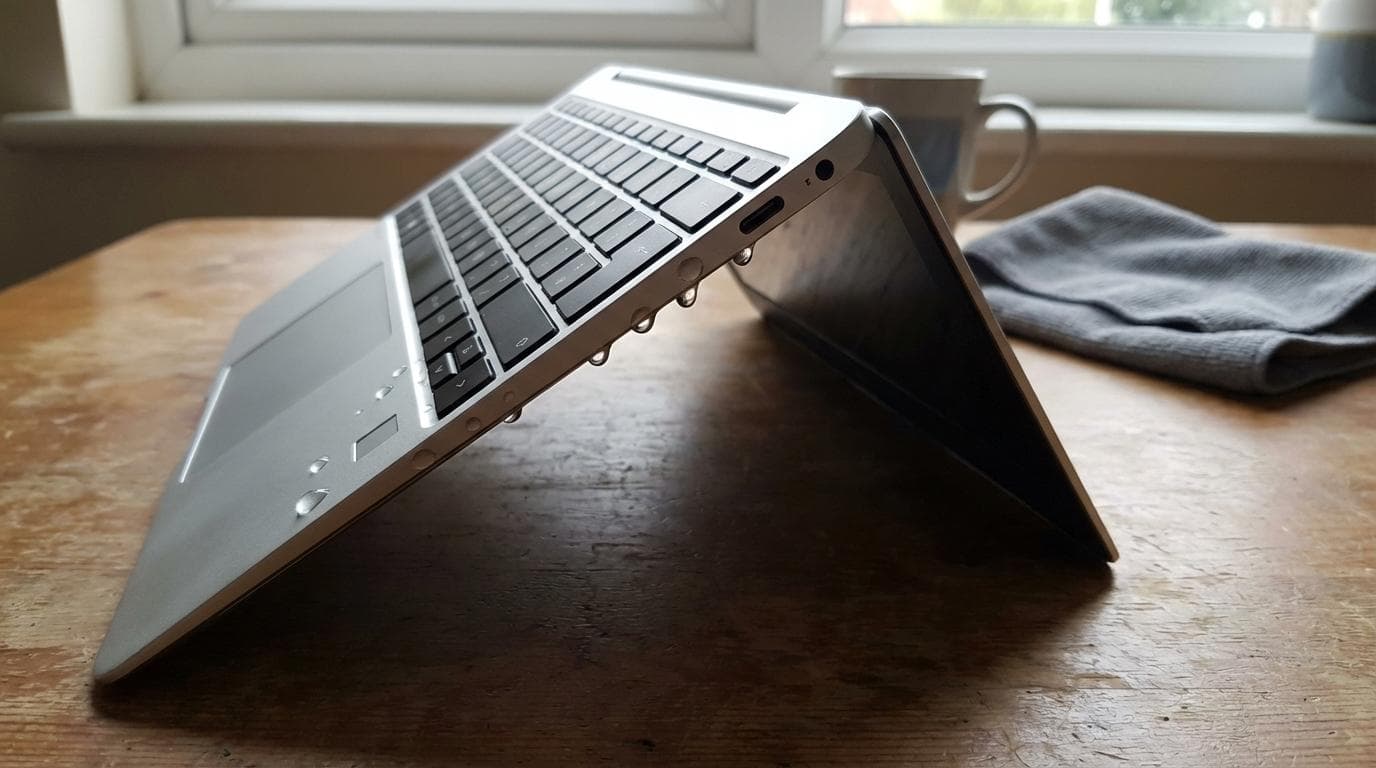
- Drain by gravity. Open the lid to about 90 degrees, then place the laptop upside down in an inverted “V” or “tent” so liquid can run out of the keyboard rather than deeper into the machine.
- Blot, do not wipe aggressively. Press a microfibre cloth or absorbent lint-free cloth onto wet areas. Rubbing can push liquid further in.
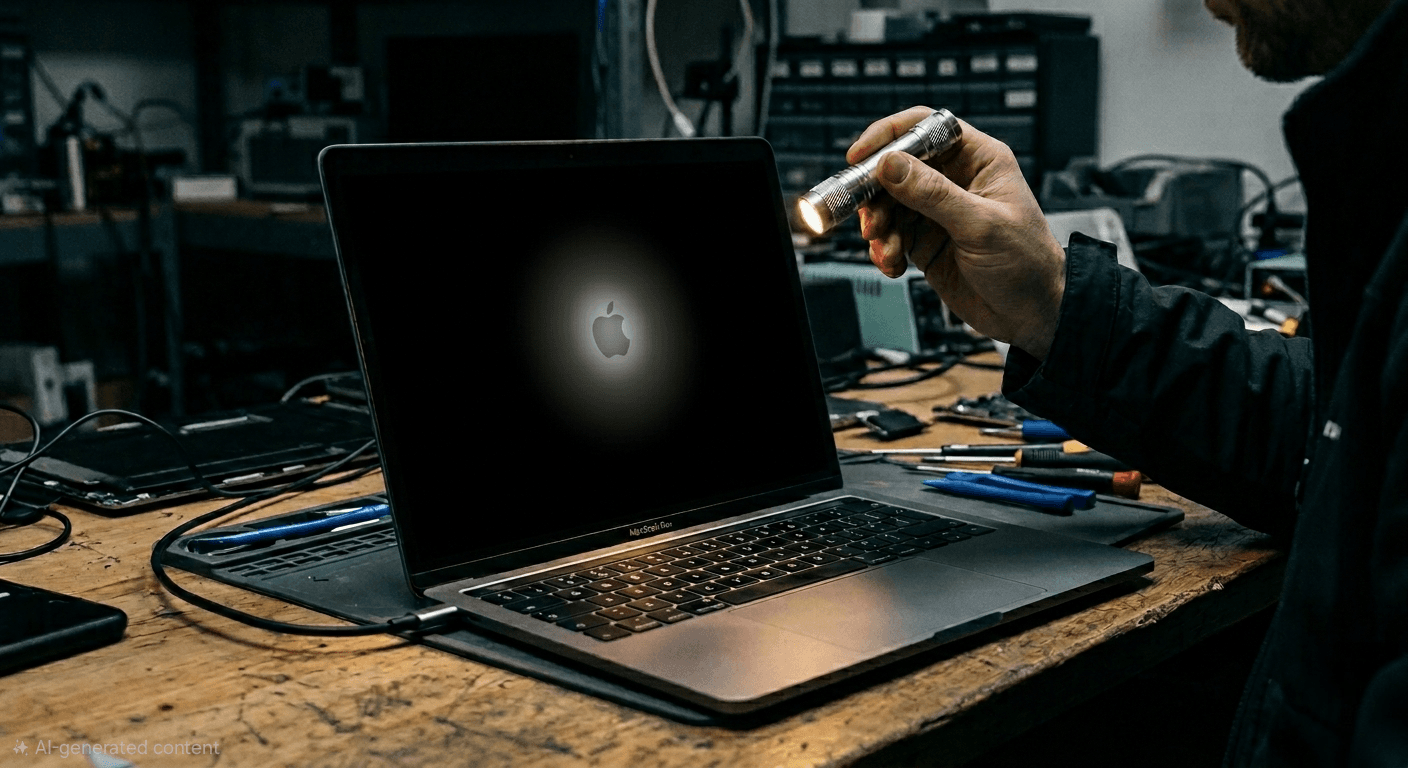
MacBooks: the same principles, tighter tolerances
MacBooks follow the same physics as any laptop: electricity plus liquid is trouble. The difference is construction. Many MacBooks have tightly packed components, a battery that is not designed for quick removal, and parts that do not appreciate heat or prying.
If you spill water on a MacBook:
- Power it off quickly and unplug it.
- Do not try to remove the battery unless you already have the correct tools and experience.
- Use the same “tent” position to drain, then leave it in a cool, well-ventilated area.
Phones: water in ports is a charging trap
With phones, the critical mistake is reconnecting power too soon. A damp charging port can trigger corrosion, or in some cases cause charging and audio faults that linger.
After liquid exposure:
- Power off if you can.
- Remove the case, SIM tray, and any accessories.
- Hold the phone with the charging port facing down and gently tap it against your hand to encourage droplets out.
- Dry the exterior with a lint-free cloth.
- Keep it in airflow, near a fan, and give it time.
Water is one thing. Coffee, juice, and salt are another.
A clean water spill is often the most forgiving. Drinks that contain sugar, acids, milk, or salt raise the stakes because they leave conductive residue behind. That residue attracts moisture from the air and keeps corrosion active.
If the spill was anything other than water, treat it as urgent even if the device seems dry on the outside. The goal becomes “remove residue”, not just “evaporate liquid”.
This is where many successful recoveries come from: stopping power fast, then getting proper cleaning done before corrosion spreads.
What not to do (even though the internet suggests it)
It helps to be blunt here. Some popular fixes feel sensible but can make the damage worse.
These are the big ones to avoid:
- Rice: it is slow, messy, and does not remove residue
- Heat: hairdryers on hot settings, ovens, radiators, or direct sun can warp plastics and stress batteries
- Vacuum cleaners: they can generate static and pull liquid deeper into crevices
- Testing repeatedly: every power-on attempt is a gamble with the motherboard
A practical timeline you can follow
The first ten minutes are triage. After that, it becomes a waiting and assessment game, with a strong bias towards caution.
| Time window | What you should do | What you should avoid |
| 0 to 2 minutes | Power off, unplug, disconnect accessories | Saving work, “quick checks”, charging |
| 2 to 10 minutes | Drain by gravity, blot surfaces, remove SIM/SD/USB | Shaking, wiping into gaps, hot air |
| 10 to 60 minutes | Place in cool airflow, keep ports facing down where possible | Turning it on “to see”, closing it up tightly |
| 6 to 48 hours | Continue drying, consider professional inspection if it was more than a few drops | Assuming it is fine because it looks fine |
| After first successful boot | Back up immediately and watch for odd behaviour | Heavy workloads before you have a backup |
When is it safe to turn it back on?
There is no universal number of hours that fits every spill. A teaspoon of water near the trackpad is not the same as half a mug over the keyboard.
A sensible rule is this: do not apply power until you are confident there is no moisture inside. If you saw liquid running into the keys, assume it reached internal components.
If you must make a decision, lean towards patience. Waiting feels slow. Replacing a board feels slower.
Signs you should stop DIY and book a proper liquid check
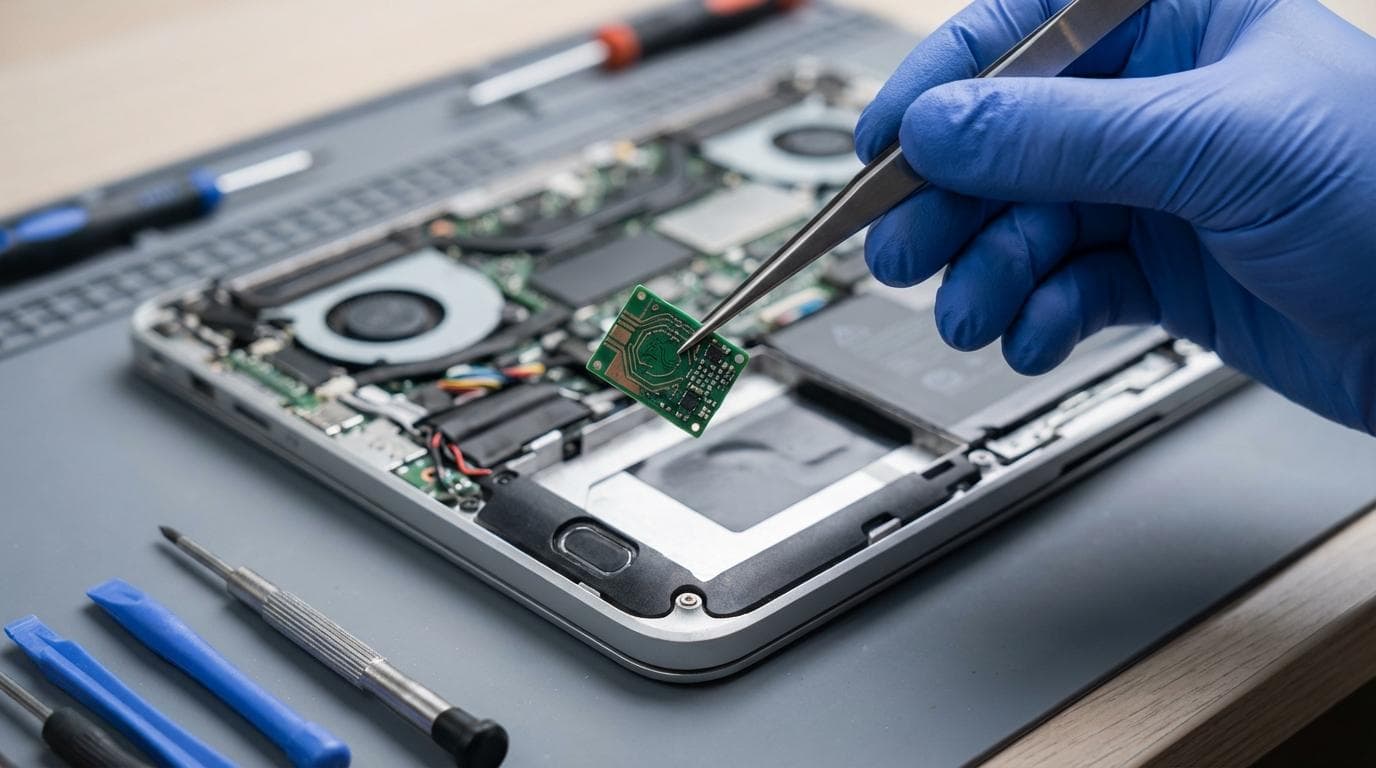
Some scenarios call for professional help quickly, not because you “cannot” dry it at home, but because the risk of residue and corrosion is high.
Consider getting it checked when:
- The spill was sugary, milky, alcoholic, or salty
- The device was on and running at the time of the spill
- Keys feel sticky, trackpad clicks oddly, or ports behave unpredictably
- You see flickering, random shutdowns, fan surges, or charging warnings
If you do get it assessed, bring the right information
Liquid damage diagnosis is faster when the technician knows what happened. That can reduce turnaround time and prevent guesswork.
Before you hand it over, make a note of:
- What liquid: water, tea, coffee with sugar, fizzy drink, seawater
- When it happened: approximate time and whether it was powered on
- What you did: shutdown steps, drying time, any attempted power-ons
- Current symptoms: no power, backlight only, keyboard issues, charging alerts
The best “aftercare” once the device is running again
If your laptop, Mac, or phone comes back to life, treat the first hour as a rescue window for your files. Back up before you celebrate.
On laptops and Macs, copy key documents to an external drive or cloud storage, and consider a proper system backup. On phones, connect to Wi‑Fi and allow cloud photo and message sync to complete before you stress the device.
Liquid damage failures can be delayed. A careful backup turns an uncertain situation into a manageable one, even if the hardware needs deeper repair later.
Share this article
Written by
Ronaldo Dias
Tech repair specialist and founder of RevivaTech, with years of experience in Apple, Samsung, and gaming console repairs.